How to Download and Install Roblox Studio (PC & Mac Guide)
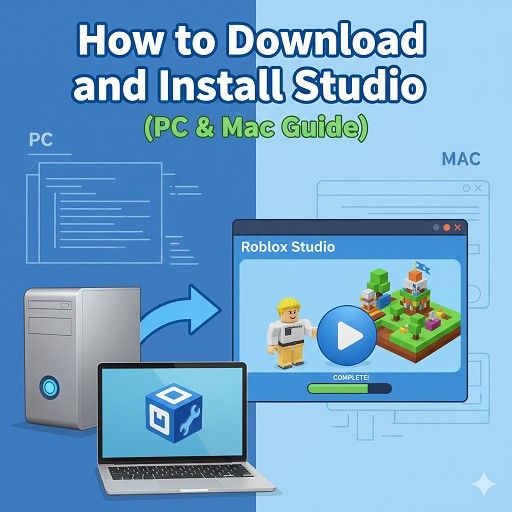
How to Download and Install Roblox Studio (PC & Mac Guide)
The world of gaming isn’t just about playing, it’s about creating. With over 70 million active daily users on the platform, Roblox has become a powerhouse, and at the heart of this colossal ecosystem lies Roblox Studio. It’s the free, powerful game creator tool that allows developers of all ages and skill levels to design, script, and publish their own immersive 3D experiences.
If you’re a gamer, a parent supporting a budding developer, or a teacher looking to integrate game design into your curriculum, you’re in the right place. Getting the Roblox developer setup on your computer is the essential first step.
This comprehensive, step-by-step guide is designed to make the Roblox Studio download process on both PC (Windows) and Mac (macOS) completely seamless. We’ll cover everything from the crucial system requirements to troubleshooting common errors and even how to launch your first project. By the end, you’ll be ready to bring your imagination to life on one of the world’s largest gaming platforms.

What Is Roblox Studio? The Ultimate Free Game Creator Tool
Before we dive into the installation, let’s establish what you’re downloading. Roblox Studio is the dedicated integrated development environment (IDE) for creating experiences on the Roblox platform. Think of it as the ultimate virtual workshop.
Unlike many other game engines, Roblox Studio is 100% free to use and is engineered specifically for the Roblox ecosystem. It comes bundled with a robust set of tools that allow you to:
- Build 3D Worlds: Use intuitive, drag-and-drop tools for creating terrain, structures, and environments.
- Script Logic: Employ Lua, a lightweight and accessible scripting language, to bring games to life with complex logic, player interactions, and physics.
- Test and Publish: Instantly test your game in a live environment and, with a single click, publish your creation to the millions of users on the Roblox app worldwide.
If you’re serious about becoming a Roblox developer, downloading the Studio is your essential, non-negotiable step, it is the engine that drives over 15 million user-created games and experiences.
Before You Begin: Roblox Studio System Requirements for PC and Mac
A common pitfall for new users is having a computer that doesn’t quite meet the specs, leading to frustrating crashes or lag. To ensure your Roblox Studio installation guide is successful and the program runs smoothly, check the minimum and recommended system requirements for both Windows and Mac below.
The platform is generally quite accessible, but aiming for the “Recommended” specs will give you a much better experience, especially when building complex, high-fidelity worlds.
| Feature | Windows PC (Minimum) | Windows PC (Recommended) | Mac (Minimum) | Mac (Recommended) |
| OS Version | Windows 10 (64-bit) | Windows 11 | macOS 10.13 (High Sierra) | macOS 14+ (Sonoma) |
| Processor (CPU) | 1.6 GHz or better (from 2005+) | Multi-core processor (i5 or better) | 1.6 GHz or better | Multi-core processor (i5 or better) |
| Memory (RAM) | 1 GB | 8 GB | 1 GB | 8 GB |
| Graphics Card | DirectX 10 or higher feature level | Dedicated video card (less than 5 years old) | Metal support | Dedicated video card (or modern M-series chip) |
| Storage Space | 300 MB free disk space | 1 GB+ free disk space (SSD recommended) | 300 MB free disk space | 1 GB+ free disk space (SSD recommended) |
| Internet | 4-8 Mb/s broadband connection | 10+ Mb/s connection | 4-8 Mb/s broadband connection | 10+ Mb/s connection |

Expert Tip on Hardware: If you are planning to use advanced features like Blender integration for 3D modeling or developing high-detail experiences, consider the “Recommended” specs as your true minimum for a lag-free Roblox developer setup.
Step-by-Step Guide 1: Installing Roblox Studio on Windows PC
The Roblox Studio download for PC is a quick and secure process. You must already have a Roblox account to install and use the Studio. If you don’t, create one on the main Roblox site first.
Step 1: Locate the Official Download Button
- Go to the Roblox Creator Hub: Open your web browser (Chrome, Edge, or Firefox recommended) and navigate to the official Roblox Creator Hub (create.roblox.com).
- Log In: Sign in using your existing Roblox account credentials.
- Find the Download Prompt: On the Creator Hub, you should see a prominent “Start Creating” or “Download Studio” button. If you’ve never used Studio, clicking “Start Creating” will prompt the download.
- Initiate Download: Click the official button. A pop-up will usually appear; click the final “Download Studio” button to start the file transfer.
- The file will be named
RobloxStudioInstaller.exeand should appear in your browser’s download bar.
- The file will be named
Step 2: Run the RobloxStudioInstaller.exe File
- Open the Installer: Locate the
RobloxStudioInstaller.exefile in your Downloads folder (or via your browser’s download history). - Double-click the file to launch the setup program.
- Grant Permission: Windows User Account Control may pop up asking if you want to allow the app to make changes to your device. Click “Yes.”
- Automatic Installation: The installation will start automatically. You’ll see a progress bar indicating that it is installing, then configuring, and finally, concluding. No complex screens or customization options are required!
Step 3: Log in to the Creator Hub
- Launch Studio: Once the installation finishes, a confirmation message will appear. Click “Launch Studio.” The Roblox Studio application will open on your desktop.
- Sign In: A login screen will prompt you to enter the credentials of your existing Roblox account. Important: Always use the same account you use to play Roblox to maintain your currency, assets, and identity.
- Start Creating: After successfully logging in, you will be directed to the Studio Home page, where you can select a template or open an existing project.
Your Roblox Studio for PC is now fully set up!
Step-by-Step Guide 2: Installing Roblox Studio on Mac (macOS)
The process to download Roblox Studio on Mac is just as straightforward as on a PC, though the file handling is slightly different. This guide is current for the latest versions of macOS, including Sonoma and Ventura.
Step 1: Download the RobloxStudio.dmg File
- Go to the Creator Hub: Navigate to the official Roblox Creator Hub (create.roblox.com) using a supported browser like Safari or Chrome.
- Log In: Sign in with your Roblox account.
- Initiate Download: Click the “Start Creating” or “Download Studio” button.
- The file that downloads will be named
RobloxStudio.dmg(disk image file).
- The file that downloads will be named
Step 2: Drag the Application to Your Applications Folder
- Open the Disk Image: Locate the
RobloxStudio.dmgfile in your Downloads folder and double-click it. This will open a new window on your screen. - Install: This window will typically show the Roblox Studio application icon next to an “Applications” folder icon.
- Drag and Drop: Click and drag the Roblox Studio icon directly onto the Applications folder icon. This copies the necessary files and installs the program onto your Mac.
Step 3: Launch and Grant Permissions
- Eject and Close: Close the installation window and drag the Roblox Studio disk image from your Desktop or Finder sidebar to the Trash to “Eject” it (this is optional but recommended).
- Open Application: Go to your Applications folder (via Finder or Launchpad).
- Launch Studio: Find and double-click the Roblox Studio application icon.
- Grant Security Permissions (If Needed): Since you downloaded the app from the internet, your Mac might ask you to confirm that you want to open it. Click “Open.”
- Sign In: The Studio login screen will appear. Enter your Roblox account credentials to access the Studio Home dashboard.
Congratulations! Your Roblox Studio for Mac setup is complete.
Common Roblox Studio Installation Issues and Quick Fixes
Even with a simple process, you might encounter a snag or two. Don’t worry, most Roblox Studio common errors have simple, quick fixes.
| Issue | Cause | Quick Fix |
| “The Installation Failed” Error | Outdated or restricted browser; corrupted download file. | Clear your browser cache and try the download again. Use Chrome or Firefox. Temporarily disable any aggressive firewall or antivirus software. |
| Studio Won’t Launch After Install | Windows: Missing or outdated DirectX/Visual C++ Redistributable. Mac: Security/Gatekeeper blocking. | Windows: Update your PC’s graphics drivers and ensure you have the latest Visual C++ Redistributables. Mac: Right-click the app icon, hold the Control key, and select “Open.” |
| Lags or Crashes During Use | Your computer is below recommended specs, or another program is hogging resources. | Close all unnecessary programs and browser tabs. For Mac, ensure your OS is updated. You may need to upgrade your RAM (to 8GB) or your GPU. |
| “Access Denied” or Blocked | Your school/work network or a parental control tool is blocking the file/URL. | Check with your network administrator to ensure the Roblox Creator Hub URL is unblocked. Check parental control software settings. |
| Stuck on “Connecting to Roblox…” | Internet connection issue, firewall block, or VPN interference. | Disable your VPN (if running). Ensure your firewall is not blocking RobloxStudio.exe. Check your internet connection speed. |

How to Launch and Navigate Roblox Studio for the First Time
Once you’ve successfully completed the Roblox installation guide, launching the application is simple:
- Windows: Find Roblox Studio in your Start Menu and double-click the icon.
- Mac: Locate the Roblox Studio app in your Applications folder and click the icon.
When Studio opens, you’ll land on the Home tab, which acts as the Creator Hub for the desktop application.
- My Games: This is where you’ll find all your published and saved projects.
- Templates: This is the best place to start. You’ll see categories like All Templates, Gameplay, and Basics. For a true beginner, selecting a simple Baseplate or a Classic Obby template is the quickest way to get into a workspace.
- Recent: Quickly access the last projects you worked on.
For example, if you’re a beginner developer, start by clicking on one of the Basic Templates, like “Baseplate” or “Flat Terrain.” This will open the core Studio workspace, giving you a clean slate to explore the tools like the Explorer (your game’s file structure), Properties (details of selected objects), and the main Viewports (your 3D world). Don’t be afraid to click around, you can always open a new template!
Creating Your First Game: A Quick-Start Guide for Beginners
The power of the Roblox developer setup lies in its accessibility. Once you’re in Studio, you’ve already completed the most technical step! Here’s a super-quick guide to making your first visible change:
- Open a Template: Click on a simple template, like “Baseplate.”
- Insert an Object: Go to the “Home” tab in the top toolbar. Click the “Part” button to insert a basic geometric block into your world.
- Move It: Select the block and click the “Move” tool (it looks like four arrows) to drag the block around the 3D space.
- Change Its Look: While the block is selected, look at the “Properties” window. Change the
BrickColororMaterialto see instant changes. - Test the Game: Go to the “Home” tab and click the “Play” button (the small man icon). Your Roblox avatar will instantly spawn into your world, allowing you to walk around and interact with the part you just placed!
- Stop Testing: When you’re done, click the “Stop” button at the top of the screen.
This simple workflow is the foundation of all game creation on the platform.
FAQs About Roblox Studio Installation and Use
Conclusion: Your Roblox Developer Setup is Complete
You’ve successfully navigated the Roblox Studio download process for your platform of choice. Whether you followed the guide for Roblox Studio for PC or the steps for Roblox Studio for Mac, you are now equipped with the same powerful, free creation tool used by millions of developers globally.
The journey from player to publisher begins now! Use the resources in the Studio to explore, experiment, and collaborate. In a world with over 32 million user-created experiences, your next great idea could be the one that takes the platform by storm.
Happy creating!


I’ve been exploring for a little for any high-quality articles or weblog posts on this kind of space . Exploring in Yahoo I ultimately stumbled upon this web site. Studying this information So i am glad to show that I have a very just right uncanny feeling I discovered just what I needed. I so much no doubt will make certain to do not omit this web site and give it a look regularly.